
Wedding Album Privacy Controls: Moderation, Hidden Gallery & Password Protection
Three new privacy controls in one update. Approve every guest upload with Photo Moderation, hide the gallery from guests until you reveal it, and now lock your album behind a password — guests must enter it before viewing or uploading.
Try It Now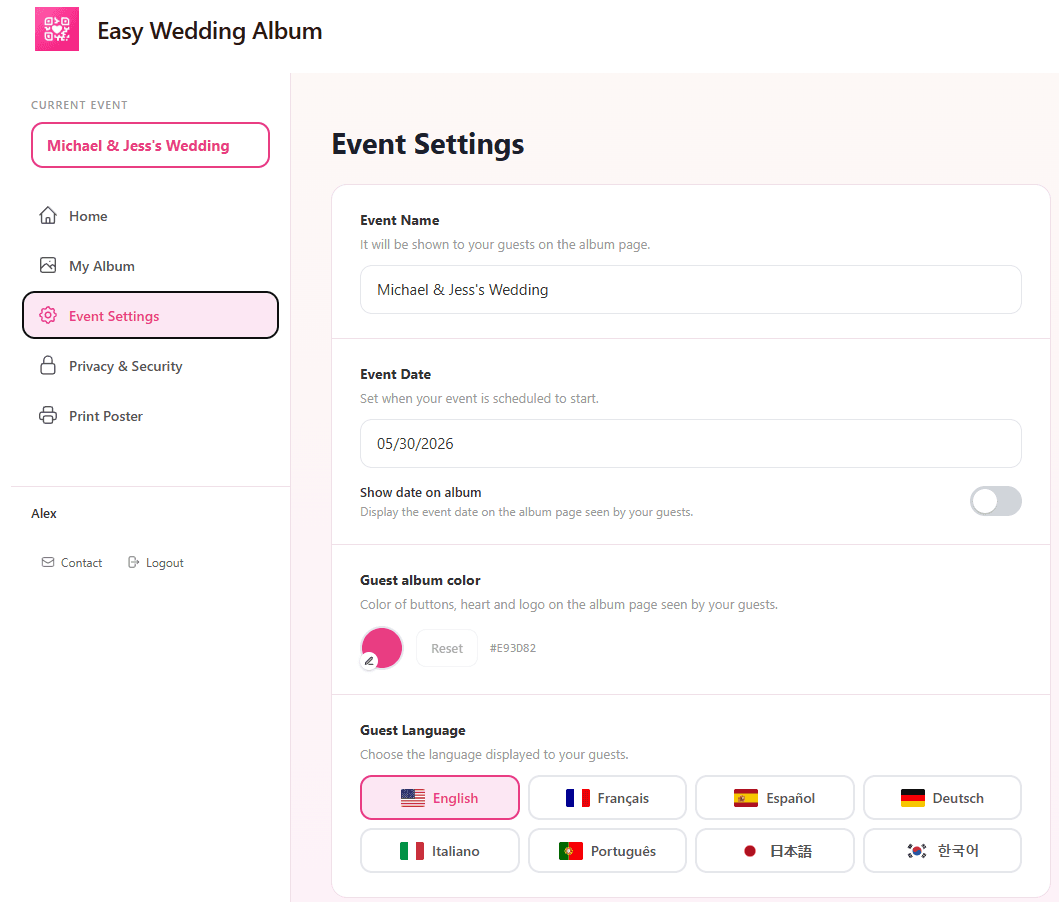
Both new toggles live in your Event Settings: Photo Moderation, and Hide Gallery from Guests.
Hide by default
When moderation is on, every new guest upload is hidden from the album until you approve it.
One-tap approval
Approve photos and videos one by one from the Photos & Videos tab — only what you release goes live.
Full control
No more nervous surprises in front of family. You decide what shows up in the album and the live slideshow.
Why we built Photo Moderation
A wedding album you can show without worrying
Couples kept asking for the same thing: a way to collect every photo their guests take, without the risk of an embarrassing or low-quality shot showing up on the live slideshow during dinner.
Photo Moderation answers exactly that. Flip the switch in Event Settings and every new upload is held in a private review queue. Approve the keepers in seconds, leave the rest hidden — your album stays beautiful, your guests still get to contribute, and nothing goes live without your green light.
How it works
- 1.Open Event Settings: in your dashboard, find the Photo Moderation card on the right.
- 2.Toggle moderation on: the card switches from Disabled to Enabled. From now on, all new uploads are hidden by default.
- 3.Review in Photos & Videos: open the Photos & Videos tab to see pending uploads waiting for your approval.
- 4.Approve what you love: tap to release a photo or video to the live album. Anything you don't approve simply stays hidden.
What it does (and doesn't) change
- Works with photos and videos
- No change for your guests — same QR code
- Toggle on or off anytime
- Hidden uploads never appear in the slideshow
- Approve from any device
- Included — no extra cost
Hide Gallery from Guests: Keep the Album as Your Surprise Reveal
A second new toggle has just landed right under Photo Moderation in your Event Settings: Hide gallery from guests. Activate it and your guests can still scan the QR code and upload all their photos and videos — but they won't be able to browse the album gallery itself. The collection stays a private surprise that you reveal on your terms.
Uploads stay open
Guests scan, upload, done. The contribution flow doesn't change — only the gallery view is hidden.
Gallery stays private
No one but you sees the album collection. Perfect when you want a clean reveal post-wedding.
One-click toggle
Right under Photo Moderation in Event Settings. Switch it on before the wedding, off the day after.
Pairs with Moderation
Use both toggles together for total control: nothing gets approved without you, and nothing leaks early.
When to use it
If you want the album to feel like a wedding gift — something you and your partner discover together first — leave Hide Gallery on during the event. Turn it off whenever you're ready to share the gallery link with your guests.
Password Protect Your Album: Only Guests with the Code Get In
The third new privacy control just dropped: Album password protection. Set a custom password from the Photos & Videos tab, and your album switches from public to private. Anyone trying to view or upload — including yourself when sharing the link with guests — must enter the password first. Perfect for keeping the album restricted to invited guests only, with no risk of strangers stumbling onto your wedding memories.
Open the Photos & Videos tab
In your admin dashboard, head to the Photos & Videos tab. The new Security button sits at the top, right next to Upload Photos & Videos and Download All. Its current state (PUBLIC or PRIVATE) is shown next to the icon.

Set your album password
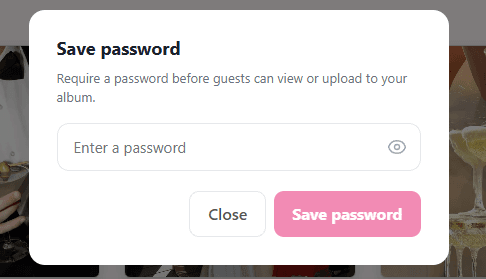
Click the Security button to open the password dialog. Choose any password you like (something memorable enough to share with your guests), then hit Save password. Your album is now private. You can update or remove the password anytime from the same place, or via Event Settings.
Guests unlock the album with the password
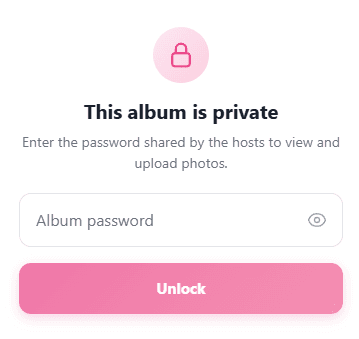
When a guest scans the QR code or opens the album link, they hit a clean unlock screen explaining that the album is private. They type the password, tap Unlock, and continue exactly as before — view, upload, contribute. No app, no account, no extra friction beyond the single password step.
Invited guests only
Without the password, the QR code and album link lead nowhere useful. Share the password with your guest list and no one else.
Custom, memorable code
Pick any string — your wedding date, a shared phrase, anything. Easy to share verbally, easy for guests to remember.
One-step unlock for guests
Guests scan, type the password once, and they're in. The session stays unlocked on their phone — no re-entry every time.
Toggle on or off anytime
Change the password, remove it, or re-enable from the same Security button — or from Event Settings. You stay in control.
Where to manage the password
Two entry points: the Security button in the Photos & Videos tab (where you set it the first time), or the equivalent control in Event Settings. Disable from either spot if you want to switch the album back to public — your photos and videos stay exactly where they were, only the lock comes off.
Perfect for couples who want…
A clean live slideshow
Only approved photos appear on the reception screen — no blurry or off-topic shots interrupting the mood.
Family-friendly content
Filter out anything that isn't appropriate for grandparents or kids before it ever goes live.
A curated final album
Keep the best memories, leave duplicates and accidental shots out of the public album.
Peace of mind for private events
Engagement parties, vow renewals, intimate ceremonies — moderation keeps everything on your terms.
Take control of your wedding album today
Photo Moderation is live now for all new and existing albums. No upgrade needed — it's included in your $29 one-time payment.
Set up in 1 minute
Frequently Asked Questions
What does Photo Moderation actually do?
When moderation is enabled, every new photo or video uploaded by a guest is hidden from the album and the live slideshow until you approve it from the Photos & Videos tab.
Where do I turn moderation on?
In your dashboard, open Event Settings. The Photo Moderation card is on the right — flip the toggle to enable it. You can switch it off again at any time.
Do guests know their photos are pending?
No. The upload experience for guests stays exactly the same — they scan the QR code and upload as usual. Only you see the moderation queue.
Does moderation also apply to videos?
Yes. Moderation covers both photo and video uploads — nothing appears in the album or slideshow without your approval.
Can I turn it on after the wedding has already started?
Yes. You can toggle moderation on at any moment. Photos already approved stay visible; new uploads from that point on are queued for review.
What does Hide Gallery from Guests do?
When this toggle is on, guests can still scan the QR code and upload photos and videos as usual, but they cannot open the album gallery to browse what others have uploaded. The collection stays visible only to you, so the album can be a surprise reveal after the wedding.
Where do I turn Hide Gallery on?
In Event Settings, right under the Photo Moderation card, you'll find Hide gallery from guests. Flip the toggle to enable it. You can switch it off the moment you're ready to share the gallery with your guests.
Can I use Photo Moderation and Hide Gallery together?
Yes — they're independent toggles designed to be combined. Run both for a fully private workflow: every upload waits for your approval, and the gallery itself isn't visible to guests at all.
How does password protection work?
Open the Photos & Videos tab and click the Security button at the top. Type any password into the Save password dialog and hit Save. Your album switches from PUBLIC to PRIVATE. From that point on, any guest opening the album link or scanning the QR code lands on an unlock page and must enter the password to view or upload.
Where do guests enter the password?
As soon as they open your album, guests see a clean unlock screen titled "This album is private" with a single password input. They type the code you shared, tap Unlock, and continue normally — viewing the gallery, uploading photos, contributing to the slideshow. The unlock state persists on their device, so they don't need to re-enter it.
Can I change or remove the password?
Yes, anytime. Open Photos & Videos and tap the Security button — or head to Event Settings. From either spot you can update the password or disable it entirely, which switches the album back to public. Your uploaded photos and videos stay exactly where they were; only the lock changes.
Can I combine password, moderation and hide gallery?
Yes — the three controls are independent and stack together. Run all three for maximum privacy: only guests with the password can reach the album at all, every upload waits for your approval, and the gallery itself stays hidden from guests until you reveal it.
Are these features included in the $29 plan?
Yes. Photo Moderation, Hide Gallery from Guests, and Album Password Protection are all included at no extra cost in the one-time $29 payment, alongside unlimited photos, videos, and the live slideshow.